Maintain secondary windows
Manager An administrative role responsible for managing workflows, feedback, and document assignments. users in the Authors role can maintain secondary windows. Secondary windows enable you to layer information, which provides the user a choice to read the information or not.
-
When the folder tree is displayed select the required document.
-
Click Edit
 .
.The document displays.
-
Choose the next step:
Insert secondary window
-
When a document is displayed place your cursor in the area in which you want to insert the secondary window.
-
Click
 .
.Manager inserts a secondary window.
-
Complete the following fields:
Field
Instruction
add text here
Type the lead sentence.
Note: The lead sentence must always end with a comma and can be bold, italicized or buttonized as required.
Tip: To insert a bullet point at the start of the lead sentence, press <Ctrl>+7 (where the 7 is on your numlock keyboard)
add title here
Type the heading text.
add content here
Type content as required.
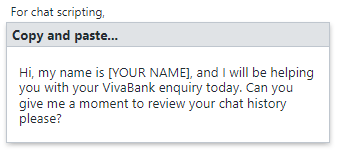
Example secondary window
This is an example of a secondary window.
Delete secondary window
-
When a document is displayed place your cursor in the secondary window you want to delete.
-
Click
.The Insert section options dialog box displays.
-
Click
 .
.Manager deletes the secondary window and all its content.